A tour of your dashboard
What every part of the screen does, in two minutes.
This is the screen you land on after logging in. Everything in Peregrine is reachable from it, and it is worth two minutes now to know what you are looking at.
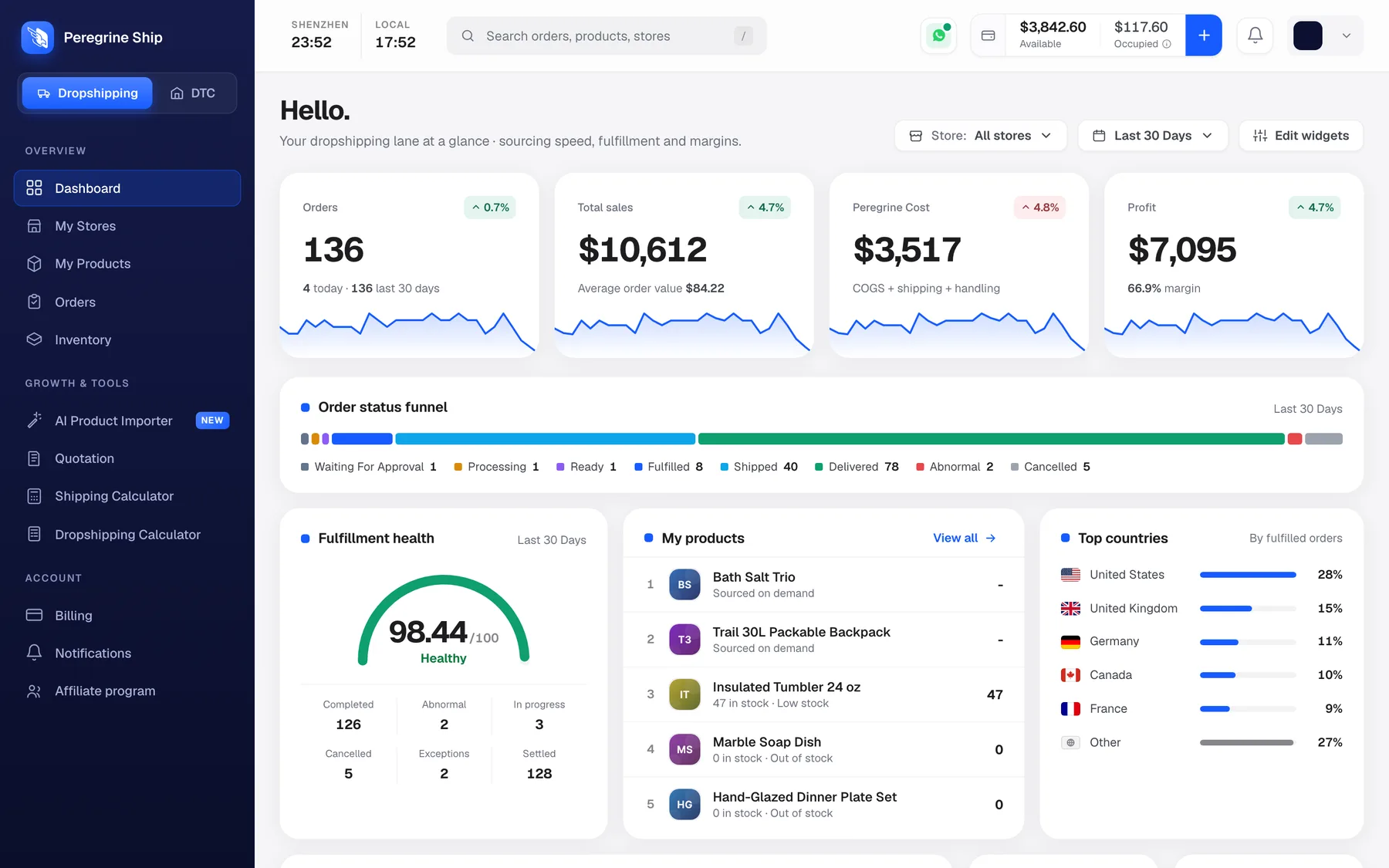
Three areas: the sidebar on the left, the bar across the top, and your numbers in the middle.
The sidebar
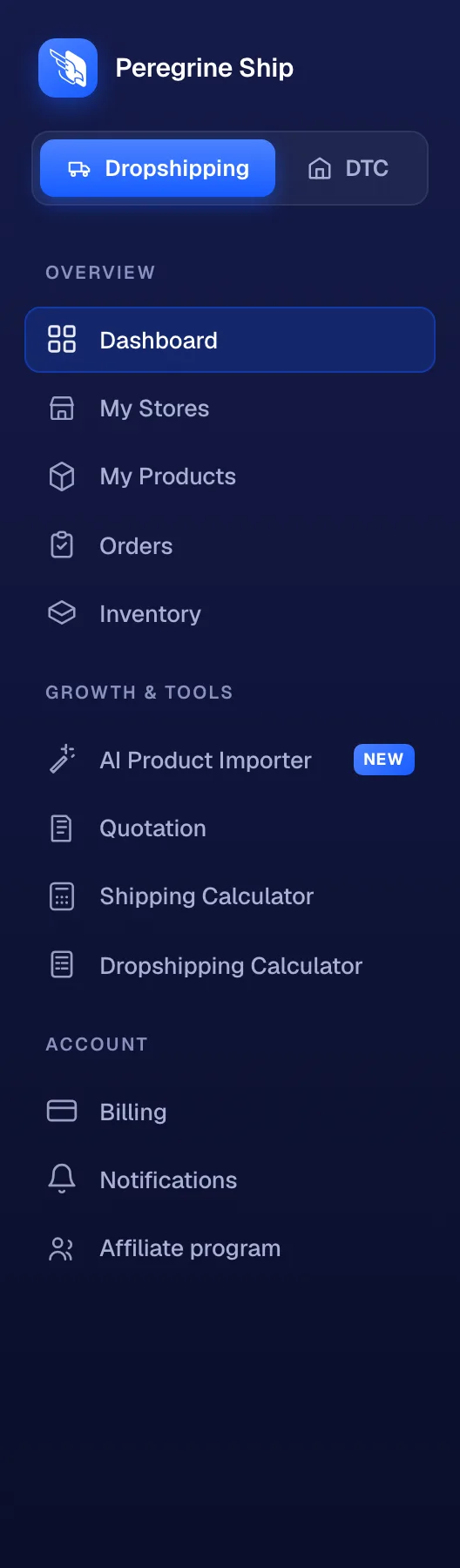
At the very top, a switch between Dropshipping and DTC. These are two different ways of working, and the one you pick changes what the dashboard shows you.
- Dropshipping. No stock held. Orders come in, we source and ship each one.
- DTC. You hold stock in our warehouse. Orders ship from what is already there.
If you are unsure which you are in, look at which side of the switch is highlighted. See Dropshipping mode and DTC mode.
Below it, the navigation splits into three groups.
Overview, the day to day:
| Dashboard | This screen |
| My Stores | Your connected Shopify stores |
| My Products | Everything you sell through us |
| Orders | Every order, at every stage |
| Inventory | Stock in our warehouse |
Growth and tools:
| AI Product Importer | Pull products in without adding them by hand |
| Quotation | Ask for a price on a new product |
| Shipping Calculator | Price a lane before you commit |
| Dropshipping Calculator | Work out your margin on a product |
Account:
| Billing | Balance, movements and invoices |
| Notifications | What we tell you, and how |
| Affiliate program | Referral earnings |
The top bar

Left to right:
Two clocks. Shenzhen time and your local time. Shenzhen is where your goods are, so when you are wondering whether anyone is at the warehouse right now, this is the answer without doing timezone arithmetic.
Search. One box across orders, products and stores. Press / anywhere to jump into it. Order number, customer name, product or tracking code all work.
WhatsApp. Opens a chat with our team.
Your balance. Two numbers, Available and Occupied. Available is spendable. Occupied is reserved against orders already in progress and has not been spent. The + next to them tops up. See Available and Occupied.
Bell. Notifications.
Your avatar. Profile, settings and sign out.
Your numbers
Three controls sit above the cards and every number on the page obeys them.

- Store. All stores, or one at a time.
- Date range. Defaults to the last 30 days.
- Edit widgets. Rearrange the page, or hide what you do not use.
The four cards

| Card | What it counts |
|---|---|
| Orders | Orders in the range, and how many came in today |
| Total sales | What your customers paid, with average order value |
| Peregrine Cost | What fulfilment cost you: goods, shipping and handling |
| Profit | Total sales minus Peregrine Cost, with your margin |
Each shows the change against the previous period, so a green arrow on Orders means more than last month, not more than yesterday.
One thing to be clear about: Profit here is not your business profit. It does not know what you spent on ads. It is what is left after fulfilment, which is the number that tells you whether a product is worth selling at all.
Order status funnel

Your whole pipeline in one bar, split by stage, with a count on each. A long Delivered block means orders are landing. A growing Abnormal count means something needs you today. See What each order status means.
Fulfilment health
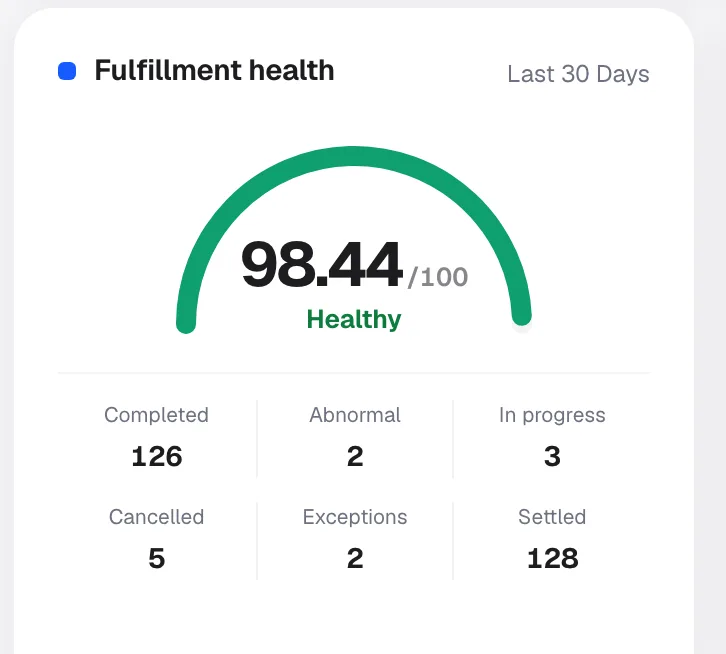
A score out of 100 with the counts underneath: completed, abnormal, in progress, cancelled, exceptions and settled. Use it as a smoke alarm. If it drops, open the Abnormal tab on Orders and see what changed.
My products and Top countries
Your five busiest products with their stock level, and where your orders are going by share. Products showing "Sourced on demand" are bought per order. Products showing a number are stock you hold with us, and a low number there is worth acting on before it hits zero.
Where to go next
- Connect your Shopify store if you have not yet.
- Top up your balance, because orders cannot ship against an empty account.
- What each order status means, for when the first order arrives.
Still need help?
Real humans on every reply. Average response under 2 hours during business hours.