Notifications: what we tell you, and where
What we tell you by email, what only appears in the app.
Two places things arrive
In-app, in the bell in your top bar. Email, to your account address.
The Notifications screen is the full feed, with three tabs: All, Unread, and Need Action. Need Action is the one to check, because it is the short list of things that are blocking an order.

Search the feed, filter by type, and use Mark all read to clear it down.
What you can be told
The Delivery channels panel on the right lists every event type with its email and in-app setting.
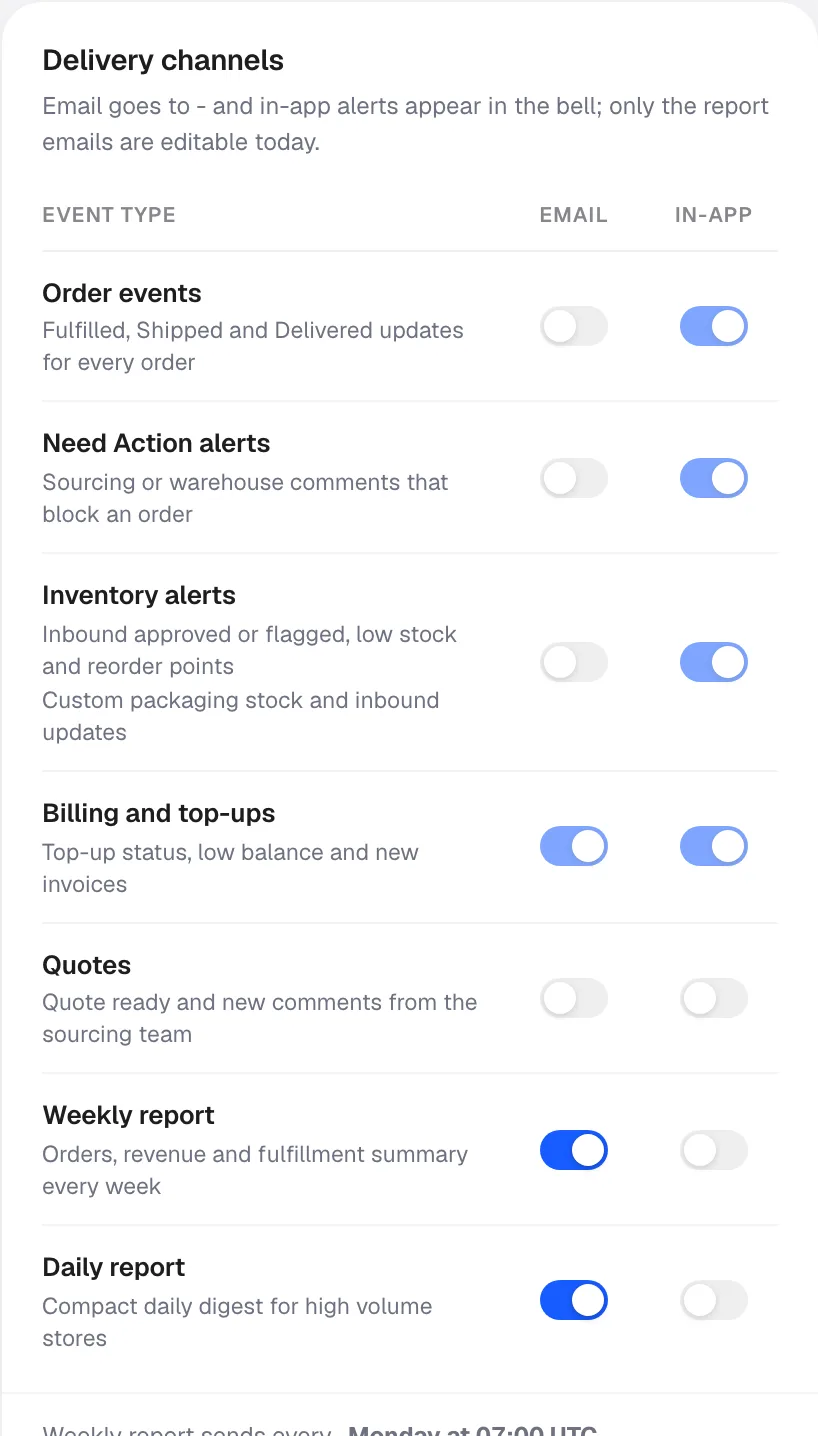
| Event | What it covers |
|---|---|
| Order events | Fulfilled, Shipped and Delivered updates on every order |
| Need Action alerts | Sourcing or warehouse comments that block an order |
| Inventory alerts | Inbound approved or flagged, low stock, and custom packaging stock |
| Billing and top-ups | Top-up status, low balance, and new invoices |
| Quotes | Quote ready, and new comments from the sourcing team |
| Weekly report | Orders, revenue and fulfilment summary, every week |
| Daily report | Compact daily digest, for high volume stores |
Only the report emails are editable today. The other rows show you how each event is currently routed rather than letting you change it.
What this means in practice
Worth knowing rather than discovering.
Billing and top-ups reaches you by email. This is the important one. Low balance is the alert that prevents orders stalling, and it is the one that gets to you when you are not looking at the app.
Order, Need Action and Inventory alerts are in-app. They appear in the bell. If you are not in the app, you will not see them until you are.
Quote notifications are off on both channels. So if you are waiting on a price, nothing will tell you it has arrived. Check the Quotation screen yourself, and use the Quoted tab.
The two reports go by email, and the weekly one has a fixed send time each week.
What to do with that
- Check Need Action daily. It is the queue where nothing happens without you, and it is in-app only.
- Do not wait to be told about a quote. Go and look.
- Keep the email address on your account current, because that is where the billing alerts go and they are the ones that stop orders stalling.
- Do not rely on notifications alone for a disconnected store. There is no alert for that. See Your store disconnected.
Frequently asked
Can I turn off order emails? Order events are in-app already. Can I send alerts to a different address? One address per account today. Can my team get their own notifications? One address per account today. Talk to us if alerts need to reach more than one person. I am not getting the weekly report. Check the toggle and your spam folder. Can I get a Slack or webhook alert? Not today.
Still need help?
Real humans on every reply. Average response under 2 hours during business hours.