Connect your Shopify store
Connect a store, and what it will and will not touch.
Connect
- Open My Stores in the sidebar.
- Press Add Store.
- Install the Peregrine Ship app from the Shopify App Store and approve the permissions.
- Come back to My Stores and confirm the card shows Connected.
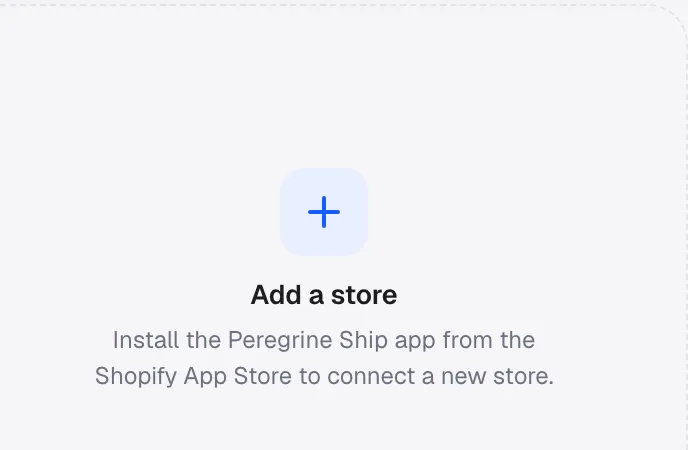
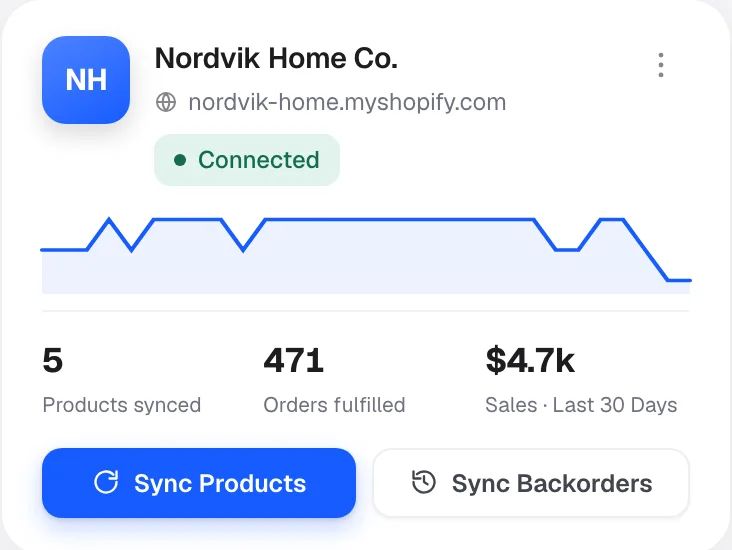
Your products import on connect. From then on, orders arrive on their own.
What it will and will not do to your store
Two fears at the permission screen, both worth answering plainly.
It will not rewrite your store. Your titles, images, descriptions and prices stay exactly as you wrote them. Nothing is overwritten with supplier content. We read your products and orders, and we write back one thing: the tracking number when a parcel ships.
It will not put us in front of your customer. Tracking goes into Shopify, so the shipping notification comes from your store, in your branding. Nothing branded Peregrine reaches your buyer. See What your customer sees.
What moves between the two systems
| What | Direction | When |
|---|---|---|
| Orders | Shopify to Peregrine | Automatically, as they come in |
| Products | Shopify to Peregrine | On connect, then when you press Sync Products |
| Tracking numbers | Peregrine to Shopify | When the parcel is handed over |
| Stock levels | Peregrine to Shopify | Live, for stock held in our warehouse |
Orders and tracking look after themselves. Products are the one thing you sometimes trigger by hand.
Give every product a SKU first
Products are matched on SKU. A product with a blank or duplicated SKU in Shopify has nothing to match against, and it will not appear here.
This is the single most common setup problem, and five minutes in Shopify before you connect saves an hour of confusion afterwards. Every product, and every variant, needs its own unique SKU.
More than one store
Connect as many as you run. One account, one balance, one stock pool. A product held in our warehouse can serve orders from any of your stores, so you are not splitting stock between them.
See Run more than one store.
Check it worked
- My Stores shows the card as Connected.
- My Products lists your catalogue. If something is missing, press Sync Products, then check its SKU.
- Place a test order in your store, or wait for a real one, and confirm it appears under Orders.
Then turn on auto-fulfilment, because it is off by default.
Frequently asked
Will connecting change my prices? No. Will my customer see Peregrine? No. Can I disconnect later? Yes, from Shopify or by asking support. Do I need to import products one at a time? No, they come across together. My product is not showing. Press Sync Products, then check the SKU. I am not on Shopify. See What if my store is not on Shopify.
Still need help?
Real humans on every reply. Average response under 2 hours during business hours.