
Correct a delivery address before the parcel leaves
Update an eligible Peregrine order, verify the saved recipient and handle labels or parcels already in transit.
On this page
Use with AI
First check whether Peregrine has already fulfilled the order or created a label. Saving a corrected address to an order record and changing the physical label are separate actions.
Open the order actions and choose Edit order when available. Check the address, city, postcode and country together before saving.
Read transcript
- Open the actions menu for the order you intend to correct.
- Choose Edit order when the action is available for that order.
- Check the address, city and postcode, and country in the same form.
- Review the correction against the customer’s details before saving.
- Edit order available
Save the corrected details and reopen Ship to. Update Shopify separately if needed.
- A label already exists
Ask the warehouse to verify the address on the actual label before handoff.
- Carrier has the parcel
Ask which correction or reroute is available and wait for confirmation.
If Edit order is available
- Verify the full address privately with the buyer, including recipient name, apartment or unit, city, region, postcode, country and any required phone number.
- In Peregrine Orders, open the matching order and select Edit order. Review Shipping address and change the relevant fields. In City and postcode, retain the displayed city, postcode format so the postcode is saved separately.
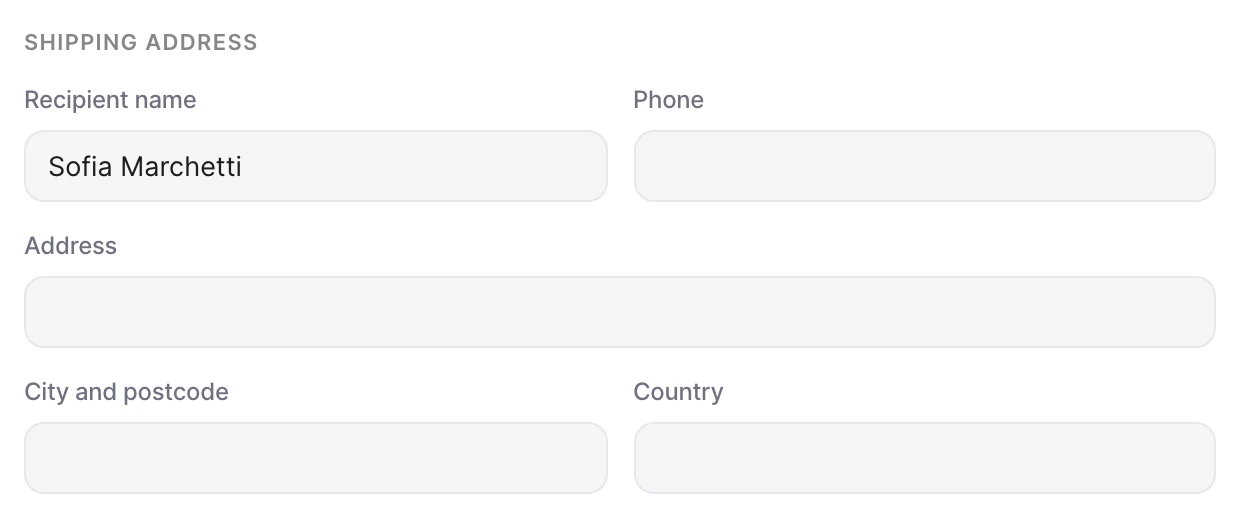
In Shipping address, verify the complete recipient details. Preserve the city and postcode format shown before saving.
Platform screenshot · Example dataView full size
Open the order drawer and find Edit order at the bottom. Its availability depends on the order’s stage.
Platform screenshot · Example dataView full size - Choose Save Changes. Reopen the order and verify the recipient under Ship to. Update the order in Shopify separately if its record also needs correcting.
- If an apartment line, region, warehouse instruction or an already printed label needs attention, send the correction directly to the team. The optional Note to Warehouse field in this editor does not deliver an instruction.
If a label or carrier event already exists
Send support the order and tracking immediately, identify the correction privately and ask whether the warehouse still controls the parcel. After handoff, the available choices depend on the carrier and delivery stage. Wait for confirmation before telling the shopper a reroute has succeeded.
Common questions
I edited Shopify. Will the shipping label automatically use the new address?
Check the recipient on the Peregrine order and whether a label exists. If packing has begun, ask the team to check the label being used.
Should I put the full buyer address in a public chat or screenshot?
Send it only in the private order-support conversation. Public issue descriptions can identify the problem using the order reference and the affected address field. Merchant WhatsApp