
Change your sign-in email and finish verification
Check access to the new inbox first, save the address in your profile and use the correct verification link to regain access.
On this page
Use with AI
Make sure you can open the new inbox before changing the sign-in email. The profile dialog explains that the change takes effect immediately and sign-in with either address waits until the new address is verified.
- Before changing
Confirm the new address can receive mail and you know the current account password.
- After sending
Look in the new inbox for the verification link and check the exact address shown.
- After verifying
Use the new sign-in email. If verification is still pending, contact support privately.
Complete the change
- Open the account menu at the top right and select Profile & settings. Scroll to Sign-in and security. Select Change email beside your current address, enter the new address twice and supply your current password.
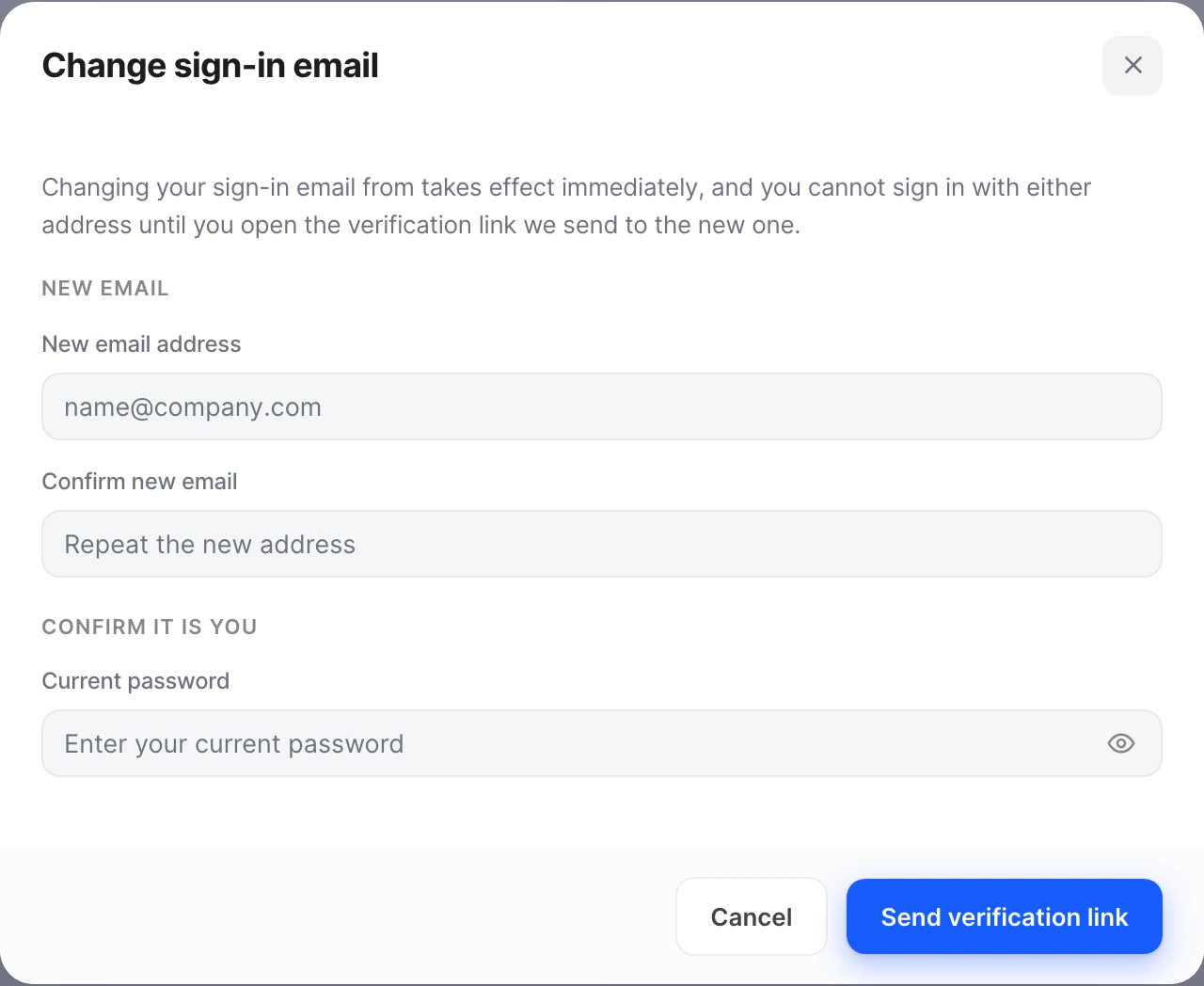
Enter the new work address twice and supply the current password. Check the destination before sending the link.
Platform screenshot · Example dataView full size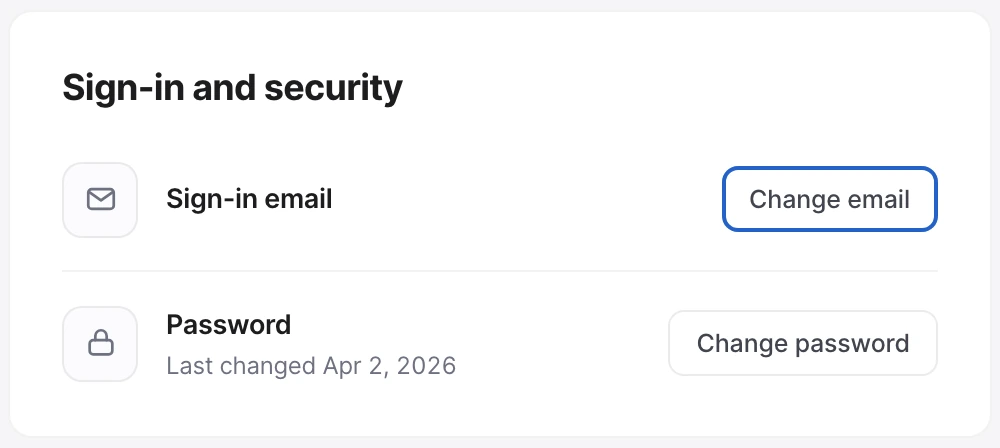
Under Sign-in and security, use Change email beside your current sign-in address.
Platform screenshot · Example dataView full size - Select Send verification link. Read the address displayed on the confirmation screen character by character, especially the domain.
- Open the message in the new inbox and use its verification link. Check spam or quarantine if it has not appeared. If the profile screen still offers the resend control, use it for the correct address.
- After successful verification, sign in using the new address. Keep passwords and verification links private.
If the new inbox is inaccessible
If you mistyped the address or lost access and cannot sign in, contact Peregrine through its official support channel. Give the store domain and the exact error or pending state. Explain that this followed a sign-in email change. Provide account-verification information through the team’s private process. Contact support
Common questions
Will the old address work while I wait?
The change dialog explicitly requires verification of the new address before either address can sign in.
Can I give support my verification link or password to speed this up?
Keep both private. Support can use your account and store references to direct you through its verification process.
Does changing my Peregrine sign-in email change my Shopify store owner’s email?
This profile setting updates the Peregrine sign-in identity. Check the store account separately if that address also needs changing.