
Decide what to charge a customer for shipping
Compare a free, flat or destination-specific checkout price with the fulfillment cost for the same basket.
On this page
Use with AI
Your Shopify checkout price is what the buyer pays your store for delivery. The Peregrine shipping estimate is what you use to budget fulfillment. You can offer free shipping and still pay for the parcel.
- Parcel estimate
Peregrine estimates the cost for the specified parcel, route and packing assumptions.
- Checkout shipping
Your store displays the customer-facing rate under the rules you configure there.
- Final comparison
Compare the customer receipt and the posted fulfillment charge for that order.
Price three baskets before choosing a rule
Choose a common single item, your typical multi-item basket and your largest regular bundle. For each, record the destination, packed weight, outside dimensions and special contents. Get an estimate for the actual basket. If a large item requires another parcel, record that parcel separately. Repeat for any major customer market with a different service.
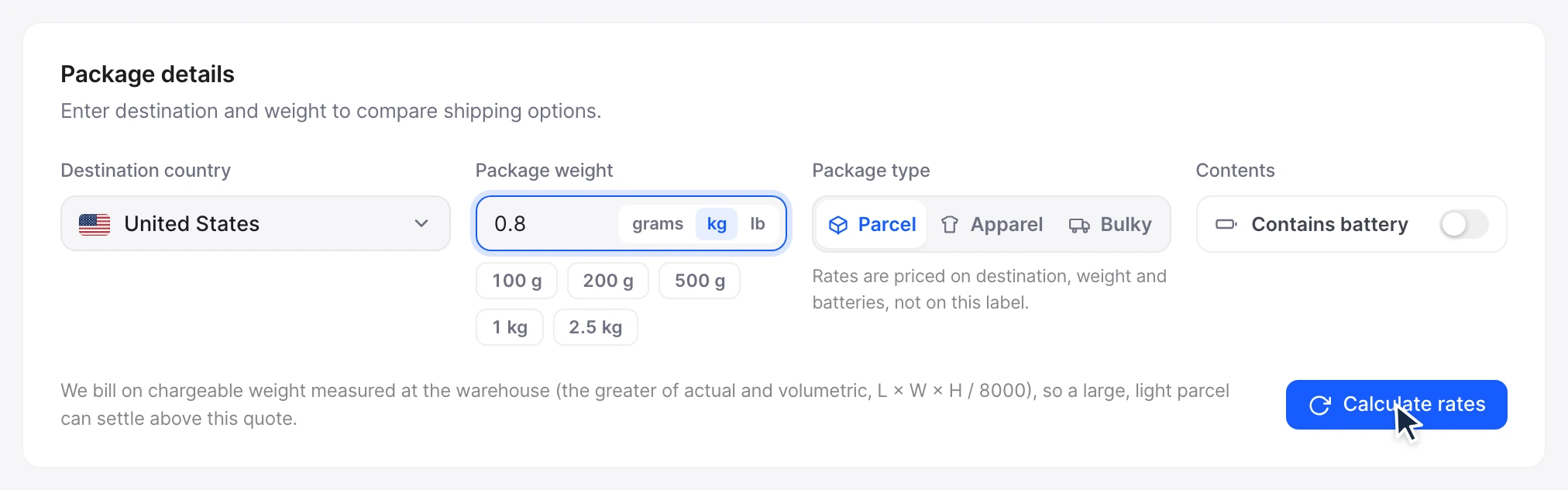
Price each representative parcel using its destination, packed weight and contents before deciding what to charge a shopper.
Test free shipping and a flat charge
Suppose one parcel costs your business $7.20 to ship in an example. With a $4.00 customer shipping charge, $3.20 of freight remains to be covered by the product margin. With free shipping, the margin has to cover all $7.20. If the next destination costs $12, the same $4 checkout price leaves an $8 difference. These numbers are examples, not published parcel rates.
In Shopify, open Settings → Shipping and delivery. If Shipping options directs you to Markets, open Markets, select the destination market, then choose Shipping. If your shop uses shipping profiles, open the applicable profile and zone. Check which products and locations the rate covers, then preview checkout with the same destination, variant and quantity. Check the shipping setup for your store

If Shipping and delivery displays this notice, open Markets and select the destination market to review its Shipping options.
Review an order once it ships
Open the store order to see the actual amount paid at checkout. In Peregrine, use the same order reference to check its posted charge. Record changes in packaging, parcel count or service before changing prices across your catalog.
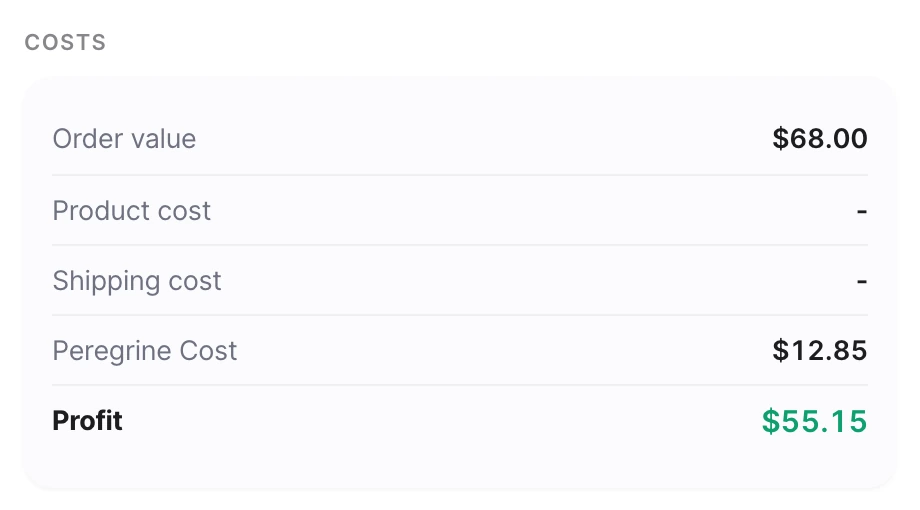
For the actual shipment, open its order drawer and read Costs. Compare that amount with the estimate and the shipping price your shopper paid.
Common questions
If I offer free shipping, who pays to move the parcel?
Your store chooses what the shopper pays. Put the actual packed shipping cost in your margin calculation even when checkout shows $0 shipping. Run the same calculation for your heaviest qualifying basket and furthest qualifying destination before setting a free-shipping threshold.
Does entering a weight into Peregrine update my Shopify checkout?
Running a shipping estimate returns information for your planning. Configure the store’s checkout rule in Shopify and verify it from checkout.
Can I offer free shipping above a certain basket value?
Check the chosen rule in Shopify and test baskets either side of the threshold. Price a real qualifying basket so you know what your margin needs to absorb.
Should I add the calculator’s handling amount on top of its displayed total?
Read the inclusions displayed with that estimate. Add only charges that apply and are excluded, such as an agreed premium pack or a destination charge confirmed separately.