
Change a size, item or quantity after a Shopify sale
Check whether the warehouse can still act and verify the revised items on both order records.
On this page
Use with AI
A shopper ordered two small shirts and now wants one medium. Write down the final request as a packing instruction with the old SKU, new SKU and exact quantities. “Change the size” leaves both units ambiguous.
- Waiting and editable
Revise the exact option and confirm the new quantities.
- Sourcing or packing
Ask what can still change before confirming the swap.
- Dispatched
Match the units to the parcel and handle the customer remedy separately.
Check the warehouse stage first
Open the Peregrine order. If sourcing has started, packing is underway, a parcel is already linked or the sale has been split, ask support which units can still change. Keep the shopper's request pending until the team confirms the physical stage.
Update the Shopify sale
- Open Shopify → Orders → the sale → Edit. Choose Product to add the correct catalog variant, then Done. In Quantity, reduce the original size to the number that should still ship.

Inside Shopify’s order editor, Product adds a catalog variant. Use the quantity on the original line to remove or reduce the original size.
Shopify admin · Development storeView full size - If staff need to know why you made the swap, enter it in Reason for edit. Shopify labels this note as visible only to staff.

The edit reason is a private staff note. Confirm any new size or price with the shopper through the store’s usual channel.
Shopify admin · Development storeView full size - Check the final quantities and revised total, then choose Update order when they are correct. If Shopify shows a balance to collect or a refund due, handle that payment decision separately. Shopify’s order-editing steps

Shopify keeps Update order disabled until there is a change. Review the final quantities and total before submitting it.
Shopify admin · Development storeView full size
Read back the actual packing list
In Peregrine Orders, open the original number, scroll to Items, and compare the SKU and quantity under each product name. Peregrine's Edit order form changes recipient details. The actual product change belongs on the Shopify sale and needs a warehouse readback. For a split sale, give support every Peregrine reference and specify which parcel should change. If the two systems disagree, ask the warehouse to confirm its pick list before a further release.
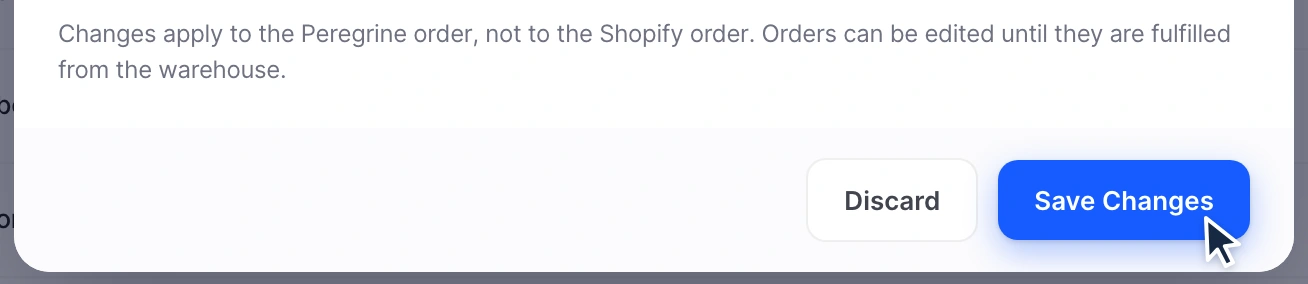
Peregrine’s Edit order explains that the changes stay on that record. Recheck the actual SKU and units under Items for a product swap.
Common questions
Can I change an item that has shipped?
Check which units and parcel actually left. Arrange the appropriate return, exchange or additional shipment for those units under your store's policy.
The saved Shopify order looks right. Can I promise the new size now?
Get the updated variant and quantity confirmed on the fulfillment side, particularly for a sourced item already ordered or a parcel already packed.