
Recover individual orders after a partial Shopify import
Check which selected orders exist before retrying a failed batch or creating any manual order.
On this page
Use with AI
You selected five backorders and the result calls out two failures. Treat each Shopify reference as a separate question. The result reports what the import returned. The order list shows which records you can actually open.
Review two fictional Shopify backorders. The sample result marks one Failed and the other No error reported.
Read transcript
- Clear the page selection, then pick just the two orders you intend to import.
- Choose Review import. Match the order count and both Shopify references.
- Submit the sample selection. Import finished with failures means some rows need a check.
- #1147 says Failed. #1148 says No error reported. Verify each number in Orders.
- Record the result
Save the failed numbers and store.
- Read back each sale
Locate its actual Peregrine record and item quantities.
- Retry the remainder
Select a missing, eligible reference individually and verify it again.
Reconcile the selected references
- On Import finished with failures, read the Order and Result columns. Write down which numbers say Failed and which say No error reported, then choose Done. In Orders → All orders, select the same store, clear restrictive filters and search each number with Enter. Record the Peregrine reference beside every exact match.
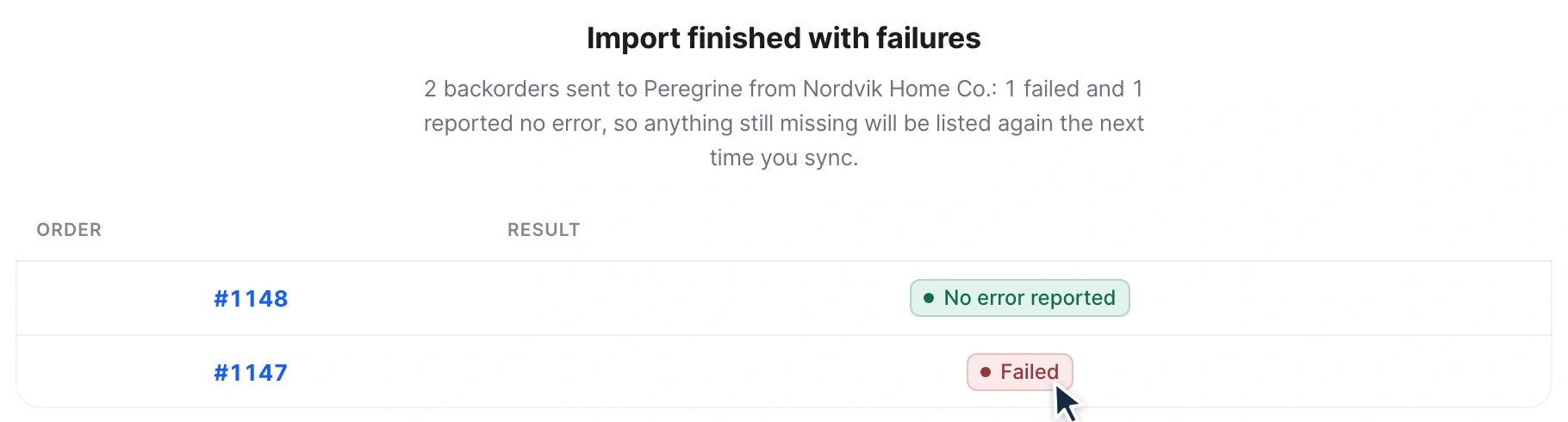
This sample result reports #1147 as Failed. #1148 had no reported error. Look up both references in Orders.
Platform screenshot · Example dataView full size - For a missing number, reopen the original Shopify sale. Confirm it still has shippable product lines, the expected customer and delivery address, and an eligible fulfillment state. A custom-only sale or a deleted product needs a closer look.
- Return to My stores → Sync backorders. Review the correct store and dates. In Select orders, the checkbox in the header clears the preselected page. Tick just the remaining order and choose Review import. Read the result and search for it again.
If the import stops without a result table
The wizard can return to Select orders with a warning that it could not tell how many were created. Write down the original selection and check each number in Orders. The refreshed list contains orders still missing from that store. Choose only those that should still be imported.
Common questions
One failed order is now visible. Should I import it again?
Open it and match the item quantities to the Shopify sale. If the records match, use the existing Peregrine reference for further work.
It is absent from both Orders and the wizard. What can support investigate?
Send the store domain, Shopify number, failed selection or screenshot, currency, current fulfillment status and whether a product or variant was removed. An empty wizard alone cannot tell you which condition excluded it.