
Manage more than one Shopify store
Trace products, orders and money to the right shop when several stores use one merchant account.
On this page
Use with AI
Each Shopify store has its own installation, domain and order assignments. In one merchant account, the dashboard can show activity for a selected shop while the wallet balance still covers all stores.
Open the store selector and check the storefront against the order you are investigating.
Read transcript
- In Orders, the store selector sits beside the search field.
- Open All stores to see the stores connected to this account.
- Choose the store that owns the order. The checkmark shows your selection.
- Choose All stores to clear that selection when you search across shops.
- Shop A · #1001
Filter Orders to Shop A and check its product, quantity and destination.
- Shop B · #1001
The same number in Shop B can identify a different buyer and parcel.
- Account balance
Selecting one store changes the activity view. The wallet still covers both stores.
Keep references unambiguous
- Open My stores and match each store card to its domain. If two cards have similar names, choose the three-dot Store actions menu, then View details → Store name → Save changes to give them distinct labels inside Peregrine.
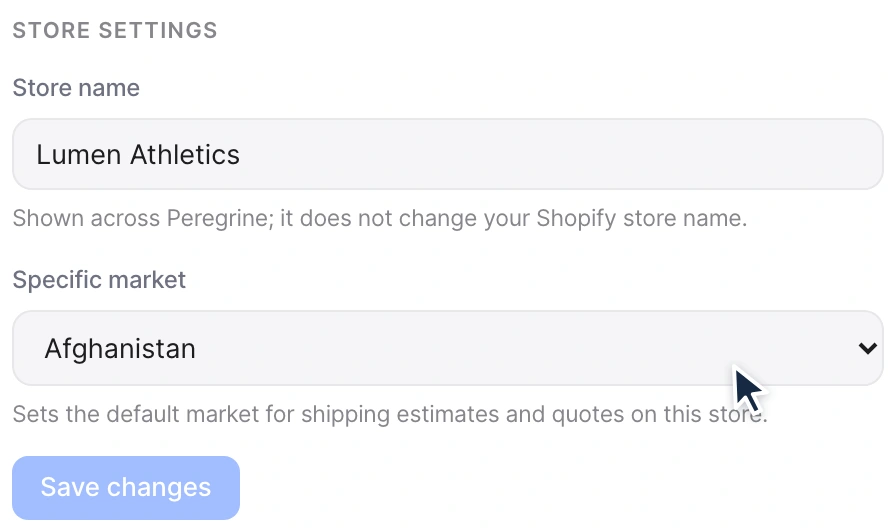
Store name changes the label inside Peregrine. Specific market sets a default for this store’s estimates. Use its domain to identify the Shopify connection.
Platform screenshot · Example dataView full size - Run product and backorder syncs from the intended store card. Confirm the domain when selecting the source store. On the backorder review, check Orders to import and the Shopify numbers. On the product review, check Source store and the selected product names.
- In Orders, use the store filter before searching by a Shopify order number. Two Shopify stores can both have an order numbered #1001. Check the items and destination to confirm the match.
- For stock sold in more than one storefront, give the team both store domains, variant identifiers and physical SKUs. Confirm which listings should draw on the same goods before relying on availability across stores.
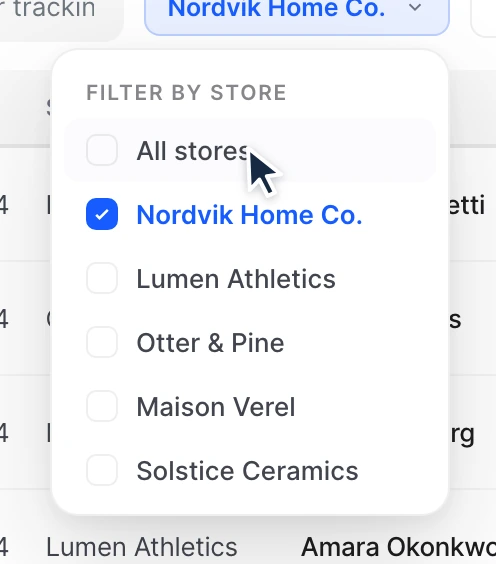
Select the shop that supplied the sale. Use its name alongside the Shopify display number when sharing a reference.
Common questions
Can I split a top-up visually by selecting one shop on Dashboard?
The Balance card is account-wide and identifies this scope when a single shop is selected. Use the store filter for order and activity comparisons.
Does the same title or SKU text automatically link two listings?
A title or matching text is insufficient evidence that both listings draw from the same stock. Check the actual variants, mappings, location assignments and received inventory.
Will changing a store's name change the web address?
The name in View details is the display name inside Peregrine. Use the linked Shopify domain to verify the actual connection.
We renamed a store inside Peregrine. Can I use the new label to trace an older sale?
Use the underlying Shopify domain alongside the order number and exact items. The display label helps your team navigate. The domain and original sale distinguish one store's order from a similarly numbered order elsewhere.