
Find a Peregrine plan charge on a Shopify bill
Locate a pending or paid app subscription and match it to the store that approved it.
On this page
Use with AI
Use this when you approved a Peregrine plan in Shopify and your bookkeeper needs evidence of the recurring charge. The bill belongs to the Shopify store that approved it, even if the Peregrine plan covers several connected stores.
- App subscription
In the Shopify admin that approved the plan, check Billing for current charges or the past bill.
- Wallet funding
In Peregrine, Top-ups and invoices records payments into the fulfillment wallet.
- Fulfillment cost
Find order-specific spending under Balance movements → Charges. Use the order reference to reconcile it.
Find the charge in the billing store
- In Peregrine, open the account menu and select Upgrade. Check Current plan and the billing interval you agreed at checkout.
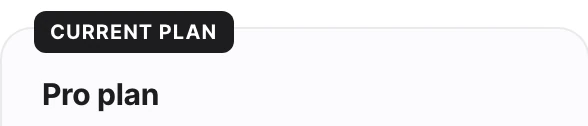
Identify your subscription in Peregrine. To retrieve an existing bill, open Settings → Billing separately in the Shopify store that approved it.
Platform screenshot · Example dataView full size - Open the Shopify admin for the store where the plan was approved. Go to Settings → Billing. Under Current billing cycle, choose View current charges for a charge that has not yet been invoiced.
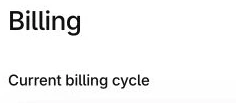
Under Billing in the approving Shopify store, find Current billing cycle. Choose View current charges to inspect a charge still in the current cycle.
Shopify admin · Development storeView full size - For a completed billing period, open the relevant bill under Past bills. Look for the Peregrine app in its app charges. Record the Shopify bill number, billing store, date and amount. Shopify explains where each app charge appears. Shopify app charges

Past bills lists this store’s issued bills. Use All, Paid or another status to find the right billing period. Open the bill to see its app charges.
Shopify admin · Development storeView full size - If your question is about money added to your fulfillment wallet, open Peregrine → Billing → Top-ups and invoices. For money used to ship an order, use Balance movements → Charges and the order number.
Common questions
I see the app charge on Shopify but my wallet did not increase. Why?
The subscription pays for account features. A wallet top-up funds eligible fulfillment costs and has its own payment record.
My colleague sees the plan across our stores. Will every store have its invoice?
Check the particular Shopify admin that approved checkout. A team member with billing access to that store can retrieve the bill.
I canceled and found a charge. What should I compare?
Compare the app charge’s period with the cancellation confirmation and effective downgrade date. If something still looks wrong, share the charge line, bill number and dates with support through your account.