
Read a partly approved inbound by variant
Use the original packing list, currently approved units and outstanding lines to avoid treating partial receipt as a shortage.
On this page
Use with AI
Keep the original packing list. During a partial receipt, the quantity still awaiting approval on a line can change. Reconstructing what the factory originally sent requires the packing list as well as today’s screen.
- On the original list
30 blue and 20 green units left the factory. Retain this document as the dispatch baseline.
- On the approved lines
30 blue and 12 green have been accepted. Use 42 as the current approved total across the two colors.
- Still unresolved
Eight green units are awaiting inspection in this example. A shopper ordering green needs the green-line check.
Read the group and its lines
- In Inventory → Inbounds, open the waybill. The table’s Received column summarizes approved units. Units on this list counts units still awaiting approval. They answer different questions.
- In the drawer, scroll to Items · declared vs approved. Match the variant name and SKU on the left to Appr. on the right. Beneath the lines, read Still awaiting approval and Units approved for the shipment. A dash in the approved column can mean that the line has no approved count yet. An approved zero is a different result.
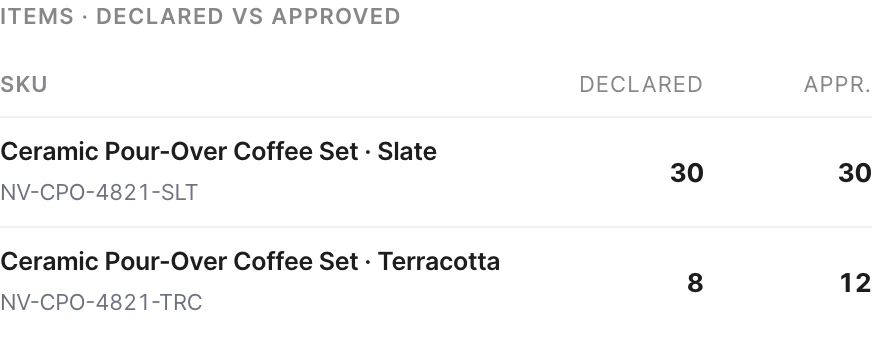
In this demonstration the two approved counts are 30 and 12. The live declared field on the second line shows eight remaining.
Platform screenshot · Example dataView full size - Compare the original dispatch, currently approved amounts and the warehouse’s confirmed remaining count. Ask which units are awaiting inspection, physically absent or canceled before describing any as lost.
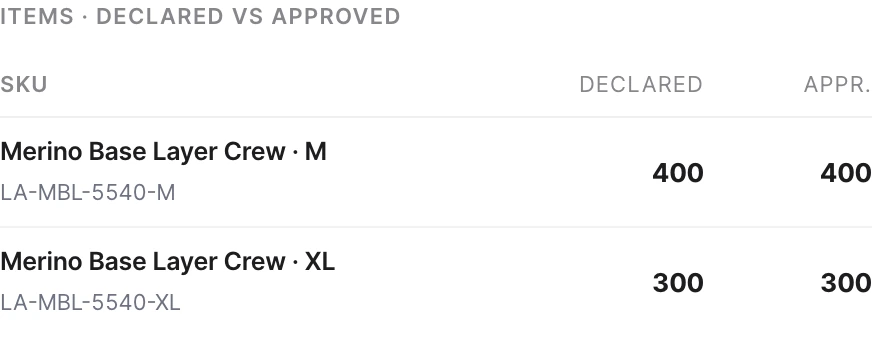
In this completed example, the medium and extra-large rows show their approved quantities separately. Use those same fields to investigate a partially accepted receipt.
Work through one carton
Your packing list says 30 blue and 20 green. Receiving confirms 30 blue and 12 green, with eight green still awaiting inspection. There are 42 approved units. A shop order for 15 green still needs its own stock check. Keep the eight open until receiving confirms their outcome.
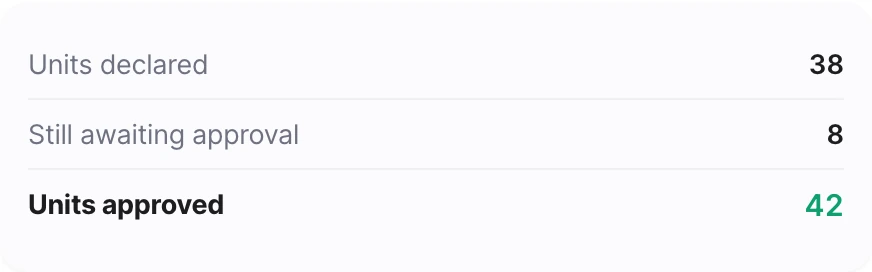
Here 42 units are approved and eight still await approval. The original packing list supplies the 50-unit baseline.
Common questions
Should I subtract Approved from the live Declared column?
Use the original dated list as your starting quantity. A partially processed line can carry a remaining amount, so subtracting again can create a false shortage.
What does Approved, some lines canceled mean?
The shipment includes completed and canceled lines with no line still awaiting approval. Check each SKU’s outcome before using a shipment-level total.
Does Partly approved mean all variants can ship?
Only some lines have progressed. Check the exact ordered SKU and available stock, including any existing commitments.