
Find a stocked variant missing from Create inbound
Recover a missing size or finish by checking the product page, owning store, fulfillment type and loaded variant list.
On this page
Use with AI
A factory article number, store SKU and Peregrine variant SKU can be different strings. Begin with the product name and one physical detail, such as the retail size or printed finish.
- Same name, different shop
The wizard starts with one owning store. Confirm the correct store before selecting the product.
- Same shop, different option
Expand the product and read each SKU. Twelve Small units belong under Small even if Medium has more stock.
- Correct option, sourced per order
Have the team confirm a switch to stocking that variant before sending units to the warehouse.
Check the catalog before opening the wizard
- Open Inventory → Products. Find the product by name, click the left-hand chevron and select the SKU text beneath the required size or finish. The product drawer’s Copy SKU button can copy the first listed variant, so match the text on the individual row. Check the owning store and whether the item holds warehouse stock.
- From that inventory page, open Create inbound, choose the same store and find the product by name in Products & quantities. Select the product row marked add qty to load its variants, then compare the SKU printed beside the option’s Quantity to add field.
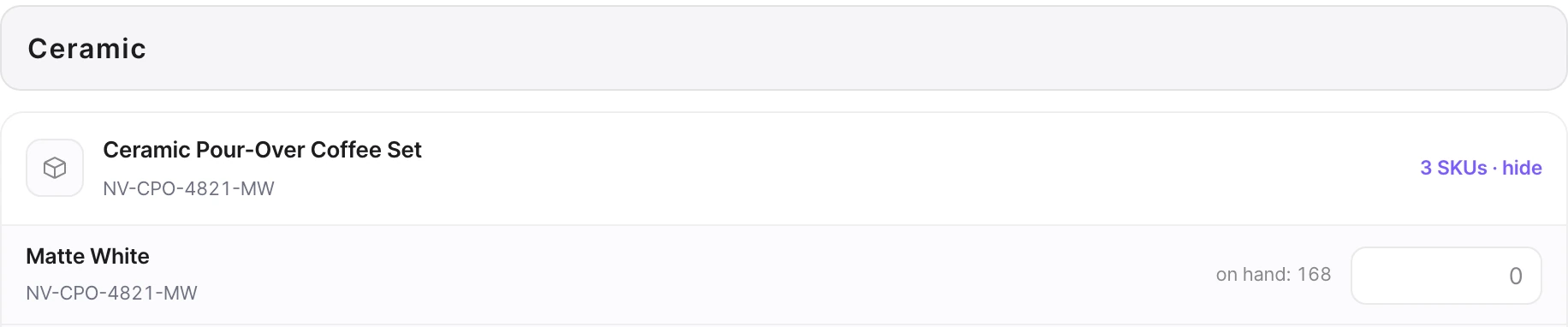
Search the product name, then open its row. The exact SKU appears under the finish, alongside the Quantity to add field.
Platform screenshot · Example dataView full size - If a variant still does not appear, compare the connected product in My products. Send support the exact shop, product and missing option. Keep the goods identified on the packing list until the team confirms the receiving SKU.
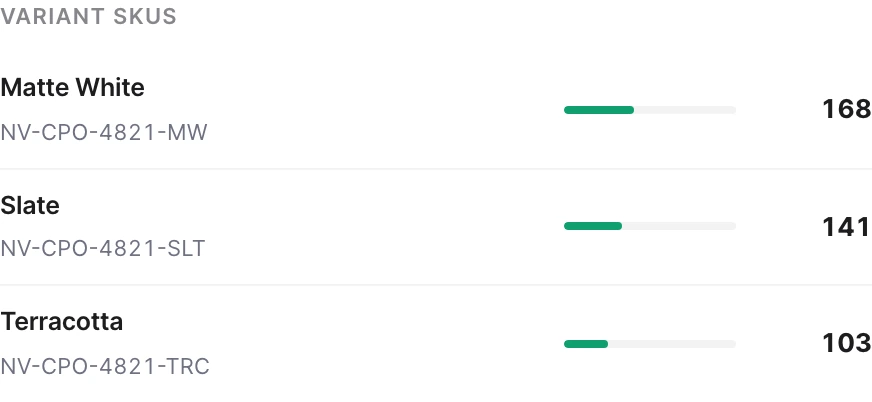
The variant drawer shows a different SKU for Matte White, Slate and Terracotta. Identify the exact missing one before checking the wizard.
When an apparently similar product appears
A Sage / M row cannot receive Sage / L just because both sit under one product. If the factory changed a name, ask it for the old and new references and a label photo. Have the team confirm the mapping before assigning the quantity.
Common questions
Is the wizard able to receive a product sourced per order?
The product selector shows stocked products. If you have bought units for a formerly on-demand item, agree the variant’s change to stocked fulfillment first.
Why could I find the product by title but not by its SKU?
Variant text is available to the selector after the product’s variant rows have loaded. Find the product title, expand it and compare each SKU.
There are two identical product titles. Which one do I choose?
Match the owning store and the variant’s Peregrine SKU. If both match or neither matches your documents, have support resolve the product reference before sending stock against it.