
Resolve a missing or unexpected inbound destination
Use the Review step before dispatch when a shipment combines stock assigned to different warehouses or its destination cannot be confirmed.
On this page
Use with AI
The merchant wizard resolves the warehouse as you build the inbound. The Destination on Review identifies the location the stock will be recorded against. Obtain the actual receiving address and contact instructions for the dispatch before sending them to the factory.
- Named destination matches
Check the assigned receiving address and SKU list before the factory dispatches to that destination.
- Two destinations confirmed
Separate the cartons by actual warehouse, label and waybill. Use the matching inbound for each dispatch.
- Destination uncertain
Keep the factory’s label and item list ready. Ask which warehouse can receive those SKUs before authorizing dispatch.
Check what belongs together
- In Inventory → Create inbound, choose the store, enter the dispatched SKU quantities and supply the factory waybill. On Review, read Shipment → Destination. To locate the address, choose DTC in the sidebar, then Inventory → Reorder report → Warehouse receiving details → Copy details. Paste the details into a draft and confirm the destination and carton-marking instruction with receiving before dispatch.

The report’s Copy details action gives you the receiving instructions to compare with Destination in the inbound review.
Platform screenshot · Example dataView full size - If the page says it cannot tell which warehouse the shipment is going to, return to the item list. Ask the account team which destination holds each SKU, especially if the shipment contains two product families.
- When the confirmed destinations differ, separate the goods and waybills by destination and file each against its own actual shipment. If the expected warehouse simply failed to load, retry once the page is available and recheck Review.
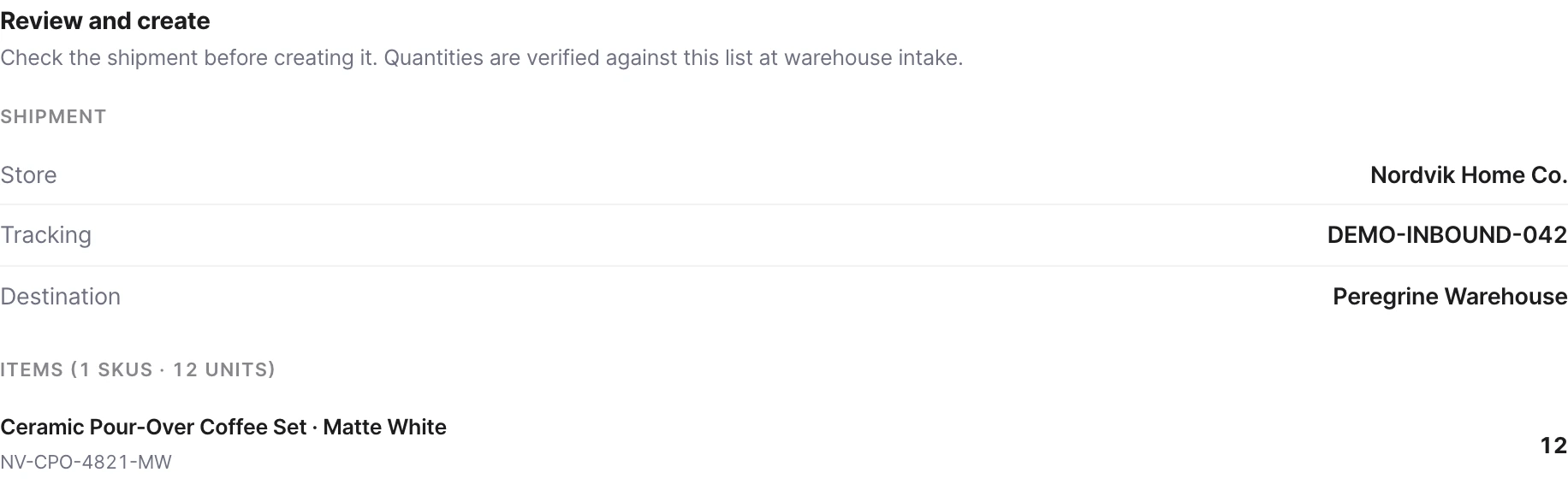
Read Destination in the Shipment section before filing. The bottom half identifies the SKU set used for this review.
If cartons are already traveling
Send support the waybill, label photo, destination actually printed on the label and SKU list. Ask receiving where that parcel is expected and whether an existing inbound can be matched. Changing an on-screen destination cannot reroute a physical parcel.
Common questions
Where is the warehouse dropdown?
The current wizard has Store, Products & quantities, Tracking and Review. Review displays the resolved destination.
Can I use an address from a past shipment to save time?
Confirm the receiving instructions for the present store, stock and warehouse before dispatch. A company mailing address or an old parcel's return address can serve a different purpose.
If the destination changes, can my carrier keep the same tracking number?
Ask the carrier or factory which label will actually travel with the goods. Give receiving both references if a replacement label is issued.