
Start a product import from a link or photo
Find a match for a product, price its actual options and save the one-unit quote that can become a store listing.
On this page
Use with AI
The standalone AI Product Importer shows Coming soon. You can already use a product page or photo in My products → Add product → Import from link. This working route starts with one product and one destination.
- Reference
Paste the product page or direct photo, then choose the customer’s destination.
- Choice
Compare matches and choose the exact option for a one-unit delivered estimate.
- Saved quote
Continue saves the match and its prices. Publishing needs its own store and final review.
Match the item you want
- Paste a public product page or a direct product-image link. Under Where you ship to, choose the country where your customer will receive it. Select Find suppliers.
- Compare the matches. Inspect the shape, size, material and pack size. Will not sell single units matters if you intend to send one at a time. No delivery price means you still need a freight quote.

This candidate explicitly says it will not sell single units. Choose a different confirmed option for individual sales.
Platform screenshot · Example dataView full size - Select a match and choose Price this supplier. Under Priced options, find your exact size or color and its delivered cost for one unit.

After selecting an eligible candidate, choose Price this supplier to load its individual options.
Platform screenshot · Example dataView full size - Select Continue. Peregrine saves the priced options, destination, quantity, title and image for the matched item, then opens Publish to your store. Stop here if you only wanted the quote.
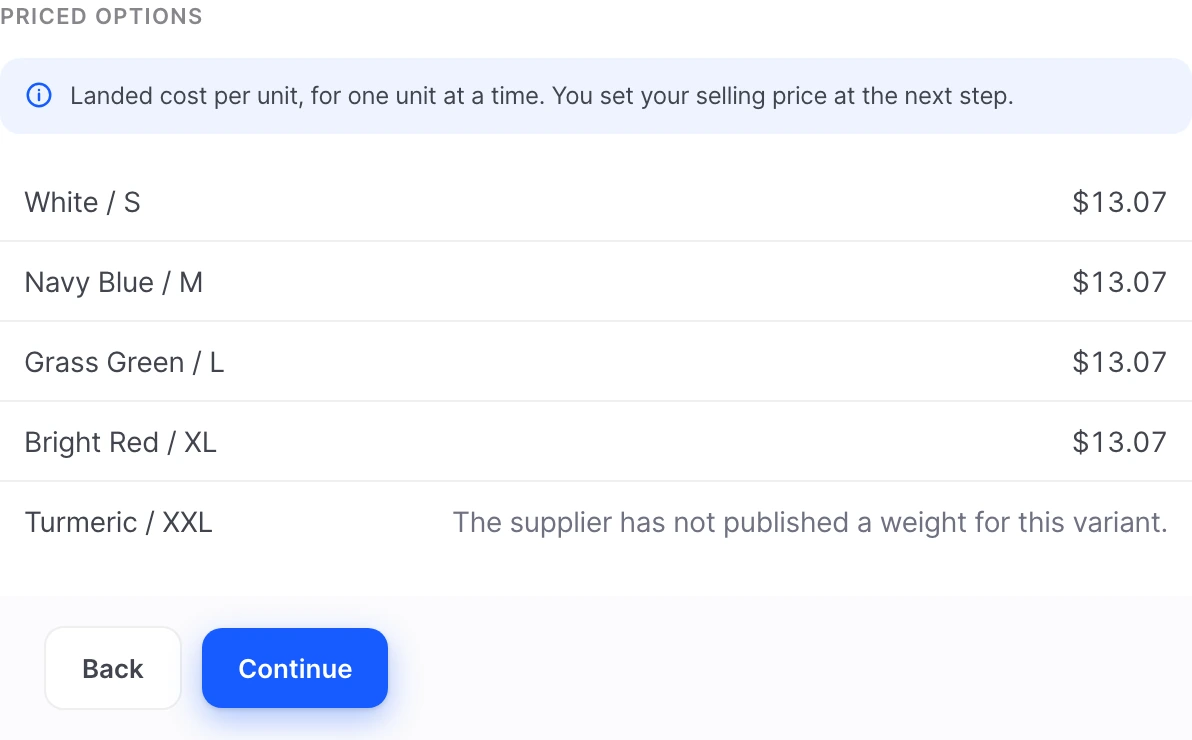
Continue saves the quote and opens store review. Store publication has its own separate final button.
Platform screenshot · Example dataView full size
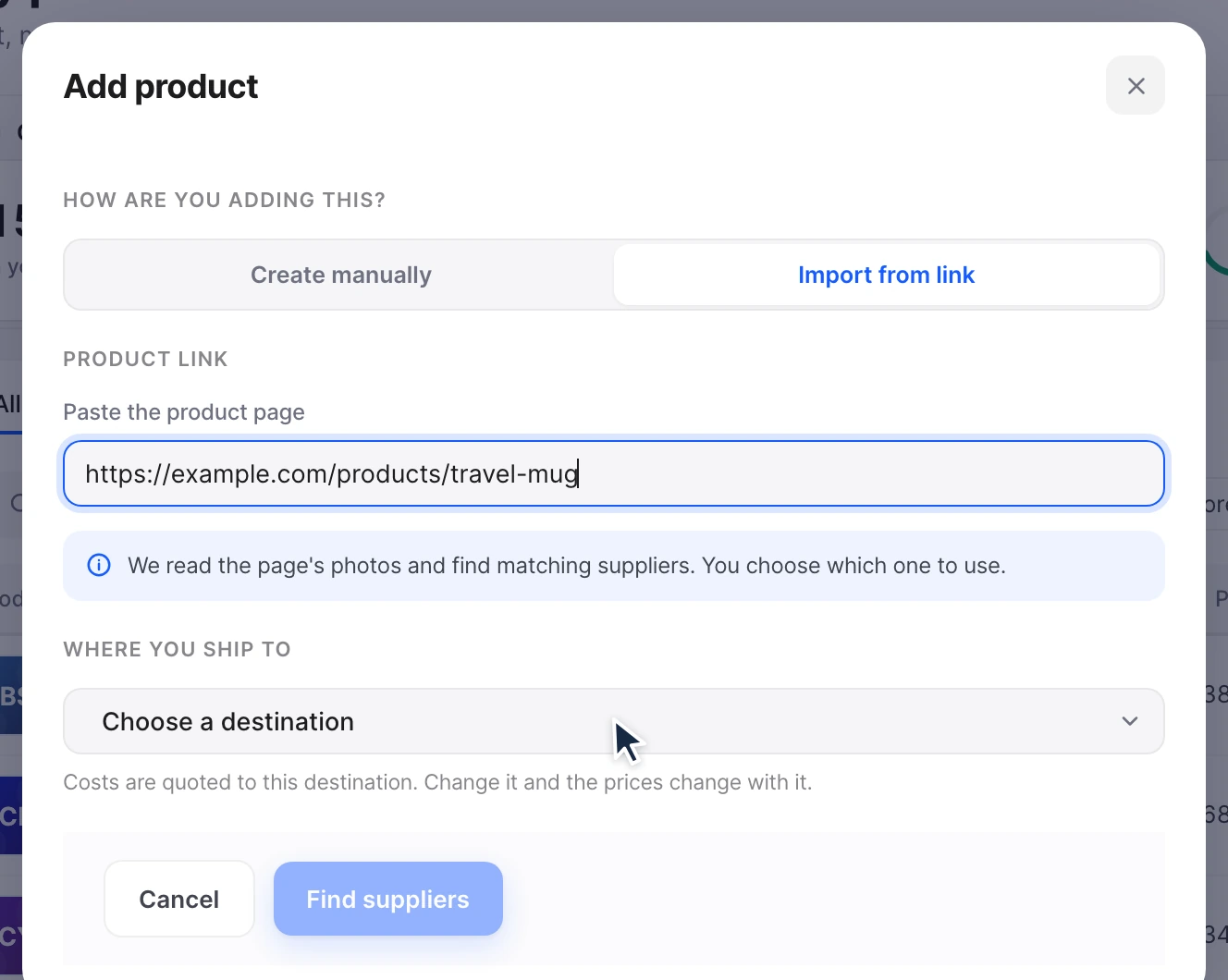
Paste the product page in Import from link and choose the destination before Find suppliers. The example remains in the input form.
When a link fails
For an unreadable page, try the direct address of its main product photo. A password-protected page, home page or collection image may not identify the item. If the photo returns no suitable match, send the product photo and exact specification in a sourcing request.

This link-error message asks for the main product image address. Paste that image address into the reference field, then run the match again.
Common questions
Did Continue add a product to Shopify?
No. A saved quote can be used to build a listing. Choose a connected store and complete the separate publishing review to send it there.
Will my competitor’s description and photos be copied?
The pasted photo helps find a match. Review the matched image and product title, then use names and material you have permission to publish.
The quote failed to save. Should I publish anyway?
Stay on Priced options and retry the save. The publishing step needs a saved quote. If the failure repeats, send support the destination, product description and error text.