
Update several variant codes from a spreadsheet
Paste manufacturer references for one product’s variants, preserve existing codes and check the saved result.
On this page
Use with AI
Use the spreadsheet editor when a single style has several colors or sizes. Each row must match one existing Peregrine SKU on the product you opened. The first column identifies which variant to update.
- Start from the export
Download current codes for this product. Keep the original SKU, store reference and existing barcode where they are correct.
- Edit only the intended row
Copy four tab-separated cells, beginning with the unique Peregrine SKU. An empty value clears the existing cell on that row.
- Apply, inspect, save
Apply pasted rows fills the editor. Select the affected variant, check it, then choose Save product codes.
Prepare the four columns
- Open the product in My products → Product identifiers → Manage codes. Expand Update multiple variants from a spreadsheet and choose Download current codes. Keep a copy of the original.

Manage codes is in the product detail drawer. Open it before expanding the spreadsheet editor.
Platform screenshot · Example dataView full size - In a spreadsheet, keep the columns in this order: Peregrine SKU, store product code, manufacturer product code, retail barcode. Keep codes as text so leading zeroes survive. Omit any variant you do not intend to edit.
- Change the values from verified product records. A blank cell in the last three columns clears its saved value on that row. Retain existing values you want to keep.
- Copy the four cells for each changed variant, without a header. Paste into Paste spreadsheet rows and select Apply pasted rows. Check each affected variant, then select Save product codes. Reopen the editor to confirm.
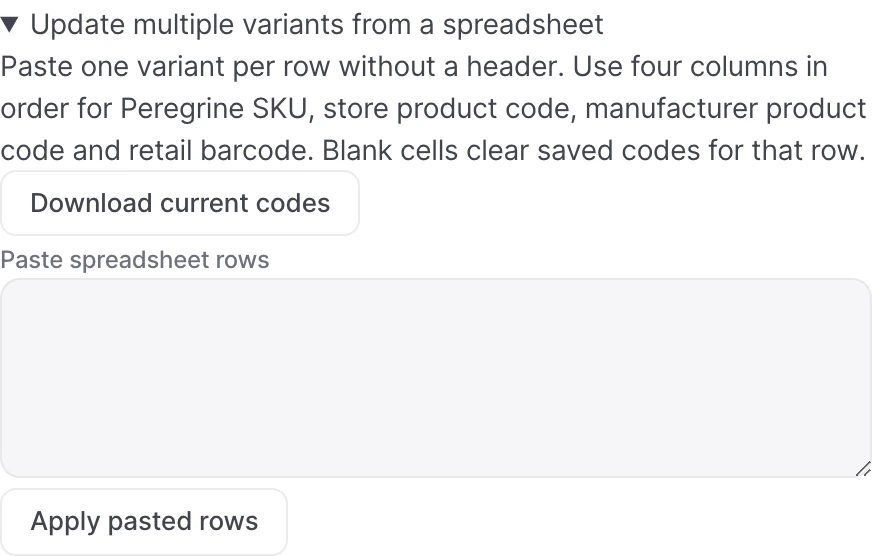
Download current codes, preserve the four-column order and paste the changed rows. Apply pasted rows lets you inspect edits before saving the codes.
Common questions
Can I paste a CSV with commas between columns?
Copy cells from the sheet so columns arrive separated by tabs. Each line must have four cells, including the last cell when the barcode is blank.
It says nothing was applied. Which row is wrong?
Check for a header, duplicate SKU, missing column or SKU belonging to another product. Start with one verified row if necessary. Review the correct product before saving.
What if a manufacturer gave me codes for a mixed set?
Record each actual item’s identifier. The editor accepts multiple codes separated by commas within one cell, with up to 70 characters per code. Keep barcode and manufacturer columns distinct.