
Recover a Shopify listing when only some options were published
Identify the variants already created, read the skipped reasons and avoid sending a second copy of the product.
On this page
Use with AI
A message that some options were left out can still mean a real Shopify product exists. Start with the existing listing and the result of the publish attempt. This protects the variants that customers may already be buying.
- Already in your store
Open the existing product and verify the actual options in the intended shop.
- Published with options left out
Compare In your store with Not added and record the reason beside each missing option.
- Could not load the quote
Check the error and whether any prior attempt reached Shopify before starting again.
Reconcile the result with the store
On the publishing result, read the destination store and product title. Under In your store, copy the names of the variants that went through. Scroll below the successful options to Not added. Read the explanation printed under each skipped option’s name and keep it with that SKU. In the same Shopify store, open Products and match the product and variants to those two lists.
For example, if Navy S and Navy M are listed but Cream M is under Not added, review Cream M’s stated issue. An unpriced variant needs its estimate resolved. Variants sharing the same customer-facing name need distinguishable size/color names. Send support the existing store product reference before repeating an import if the correction path is unclear.
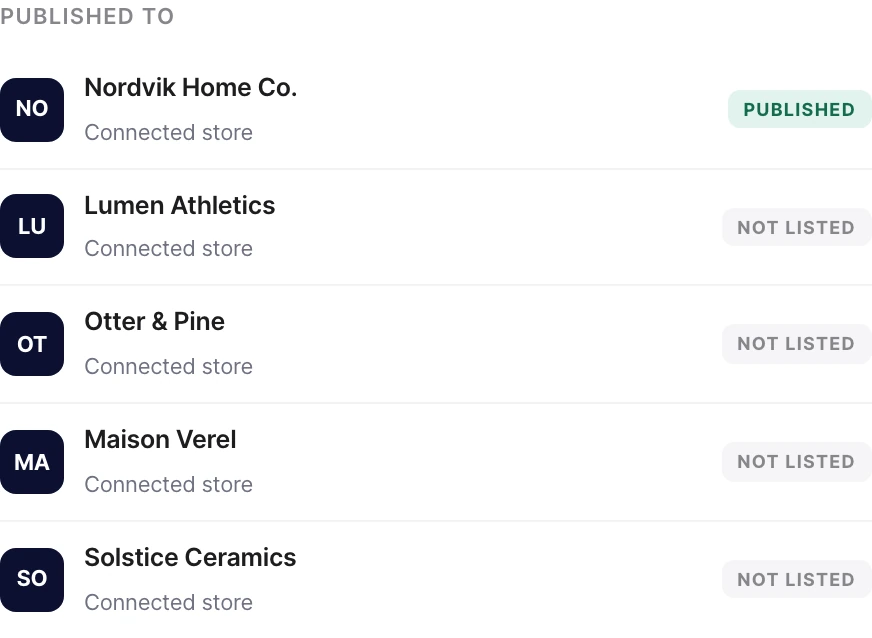
Published to shows the product’s current store associations. Check the same connected Shopify shop before repeating a publication.

A partial success names the destination store and counts accepted options. The demonstration added four of five options to its isolated store.

Not added names the skipped option and the reason. The demonstration’s Turmeric / XXL variant lacked a published weight.
If Shopify has it but the shopper cannot see it
Check the product’s sales-channel availability and the specific variant’s availability in that channel or catalog. An option can exist in the admin while remaining unavailable to shoppers on a particular channel. Check the actual storefront after any intentional publishing change. Shopify variant publishing
Common questions
Should I delete the whole product and start again?
First reconcile what already exists and whether any orders use it. Ask how to correct the omitted options while preserving the existing listing and references.
What does This is already in your store mean?
The publishing flow found the prior product for that store. Open it and verify its current contents and prices before deciding anything is missing.
Can I assume the price in the result matches the price shown to every buyer?
Check the store currency and the actual sales channel or market settings in Shopify. Confirm the customer-facing price for the selected option.