
Price and publish a saved quote to Shopify
Choose the store, variants, selling prices and customer-facing names, then verify what reached Shopify.
On this page
Use with AI
Start in Publish to your store after a link import, or choose Dropshipping calculator → Saved quotes. On the one-unit quote’s row, use the upward-arrow action labeled Publish this quote to my store. Hovering it shows Publish to my store. Choose the destination country you priced for before setting retail prices. A batch quote spreads packing costs over multiple units and cannot price a single-item storefront sale.
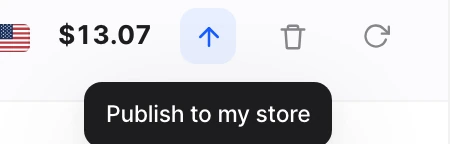
In Saved quotes, the upward arrow on this quote opens Publish to my store. The adjacent bin and circular arrow have different actions.
- Compare
Suppose size S costs $10 delivered and size L costs $14. These are example USD amounts.
- Price each option
A $12 fixed price covers S but falls below L’s cost. Give L its own price or leave it out.
- Review the listing
Check the two names, selected options and destination store. Read the actual store-currency prices in Shopify.
Work through the four screens
- Store. Check the name and domain of the connected Shopify store. Reconnect it if the row is unavailable.
- Options. Select the variants you want to sell. Choose Markup to apply a multiple to each option’s landed cost, or Fixed price to enter a USD price. Only options with a usable quote can go to the store.

On Options, choose Markup for a landed-cost multiple or Fixed price for a common USD retail price.
Platform screenshot · Example dataView full size - Names. Set the product title and distinct, customer-readable option names. In fixed-price mode, override an individual option if needed. Each price must cover that option’s landed cost. Use Next after Store, Options and Names. If it is disabled, read the explanation in the footer and correct that step.

Product name is the customer-facing title. Edit it on Names before reviewing the store and all selected options.
Platform screenshot · Example dataView full size - Review. Read the store, selected variants and prices. Select Publish to [store name] once. In Shopify Products, check the variants, prices in the store’s currency, and sales-channel availability.

The last button names the receiving store. Confirm that name and the selected variants before publishing.
Platform screenshot · Example dataView full size
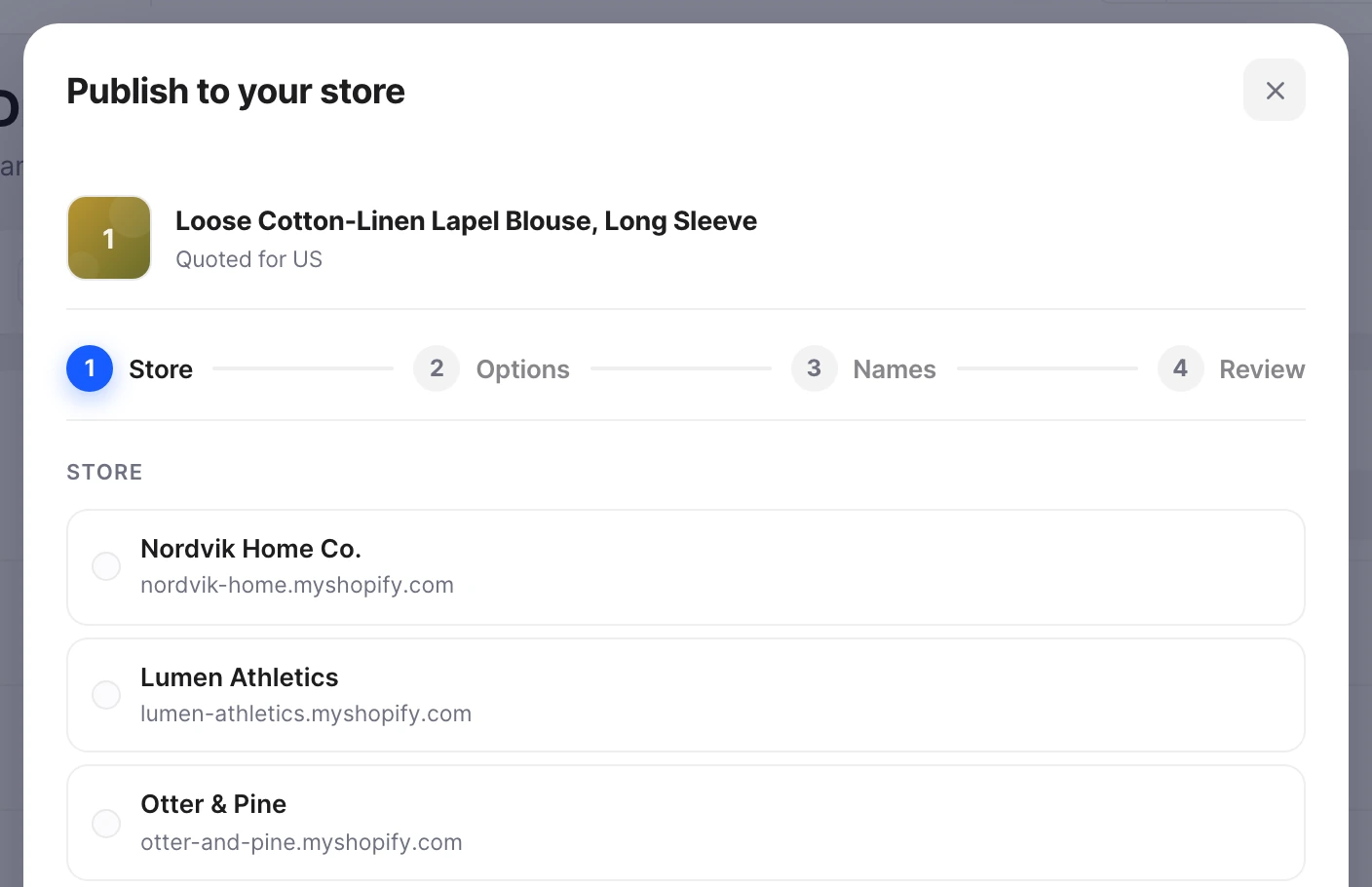
The four-step publishing wizard begins with Store. Choose the intended Shopify store before reviewing options, names and the final listing.
What if publishing only partly worked?
Compare the Shopify listing with the selected options. Keep the reason shown for any option left out. If Shopify already contains the product or the message says the store received it, send support that product reference before starting another import.
Common questions
Can I rename two variants “Blue”?
Give each selected combination a distinct name, such as “Blue / Small” and “Blue / Large.” Duplicate option names can prevent the whole listing from publishing.
What if my store sells in euros?
The quote review uses USD. Peregrine checks the store currency at publication and needs a supported conversion rate. Read back the actual EUR prices in Shopify.
The quote is no longer available. Can support recover my settings?
Run a fresh calculation for one unit and review its current prices. If a listing already exists, check it before trying again.