
Check a catalog product’s selling price and store listing
Review an existing Peregrine product, send it to the intended store and confirm the price and visibility customers will see.
On this page
Use with AI
A product can belong to your Peregrine catalog before a customer can buy it. Check the product, the store and the sales channel separately, especially when two stores carry the same style.
- Selling price
In My products → Edit product → Variants & Pricing, inspect the product-level price.
- Store assignment
Read Published to in the detail panel. The Store field in Edit product → Details is where you choose a new destination.
- Customer-facing listing
In that Shopify admin, open the product and check every selling variant, its currency, status and sales channels.
Review the listing
- Open My products, click the matching product row and scroll to Variants to read its names and SKU strings. In Edit product → Variants & Pricing, review the product-level Selling price. Choose Save Changes and reopen the product to confirm.
- Read Published to in the product detail panel to see where the product is listed. To send it to a new connected store, open Edit product → Details → Store, choose the intended store and select Save Changes. This can create a real product in that Shopify admin.
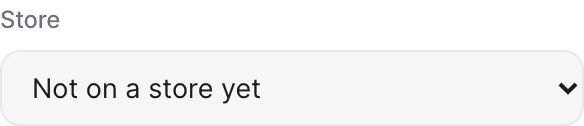
The Store selector is under Edit product → Details. Check its displayed store before saving an intentional publication.
Platform screenshot · Example dataView full size - Open Shopify admin → Products for that store. Find the product, check each variant’s retail price and currency, then check its Status and Publishing channels. Make it available on the intended channel when ready to sell. Shopify product status and availability

Selling price and Cost per unit are separate fields. Compare the selling price to the intended retail price before saving.
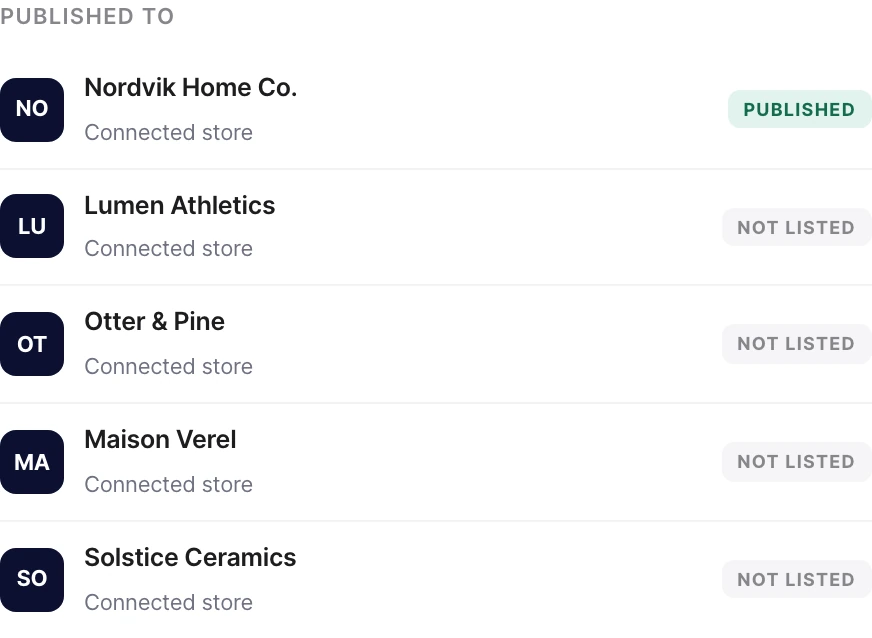
Published to lists each connected shop separately. In this example one shop is marked Published and the others are marked Not listed.
When the price looks wrong
The selling price in a Winning products quick preview is a comparison figure. Its store action does not send that number as a variant-price update. In Shopify, review and save the actual price for each variant. A product-level edit or a Peregrine status badge alone does not verify the shopper’s price or channel visibility.
Common questions
I only want to evaluate the product. Which action is safe for that?
For a product link, stop at the saved quote and inspect its variants. If Winning products is open in your account, the collection heart saves a research idea and Add to My Products adds it to your Peregrine catalog. Leave store selection until you intend to create the listing.
My catalog says Published. Why can’t my customer find it?
Open the product in the intended Shopify store. Inspect its status and the Online Store sales channel, then view that storefront. A different store or hidden channel can explain the discrepancy.
I got an error while adding the store. Should I use Add product again?
Check Published to and search Shopify by the title or SKU first. If it already exists, send support the store name and product reference so the connection can be checked.